

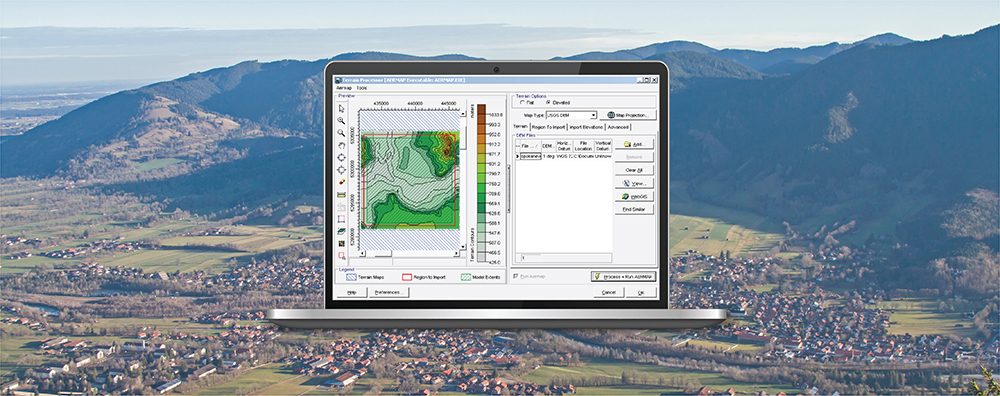
AERMOD View has many useful features that make building new projects intuitive and simple. But what about existing model files built with other proprietary software? AERMOD View has you covered there, too!
When you start a new project in AERMOD View, the New Project Wizard lets you choose where to store project files, define the project’s map projection settings, and set domain extents. Normally, modelers will start a brand-new project, but you can use an existing AERMOD model input file as a template. You can also include building data and contour plot files in this process to import a full project.
Follow the steps below to import your existing AERMOD model data into AERMOD View
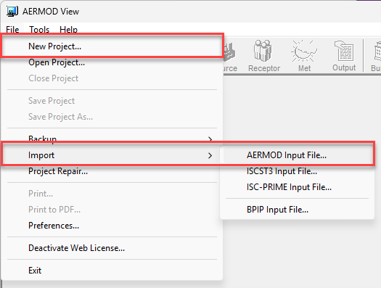
Step 1: Start a new project in AERMOD View. There are multiple ways to do this including:
- Select the New button on the main toolbar
- Use the File | New Project menu selection, or
- Select File | Import | AERMOD Input File
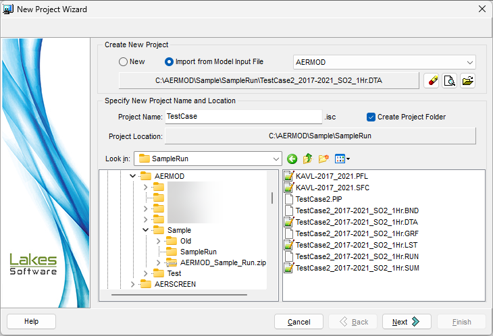
Step 2: In Step 1 of the New Project Wizard, identify the existing model input file to use as your template.

Step 3: Continue assigning the required project data such as the project name and location where it will live on your computer. By default, the new project will be saved into its own folder to make file management easier.
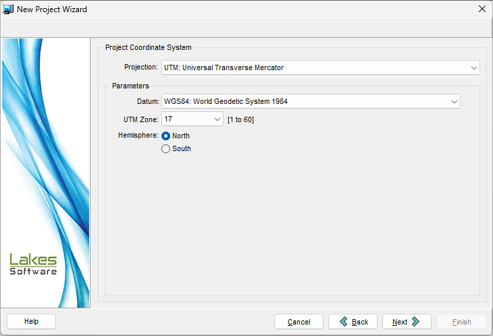
Step 4: In Step 2 of the Wizard, define your Project Coordinate System settings. AERMOD View will automatically read this information if included in the model input file. Otherwise, you can select from the available options.
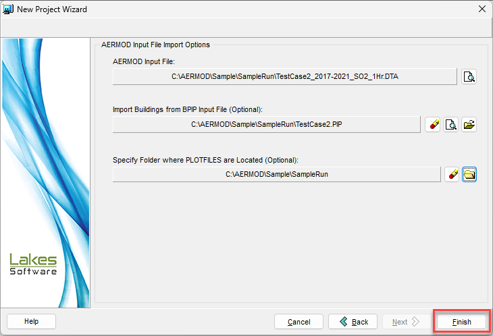
Step 5: The last step allows you to complete your new AERMOD View project by importing building data from existing BPIP input files as well as contour plot files from the original project.
Click the Finish button to generate the new AERMOD View project.
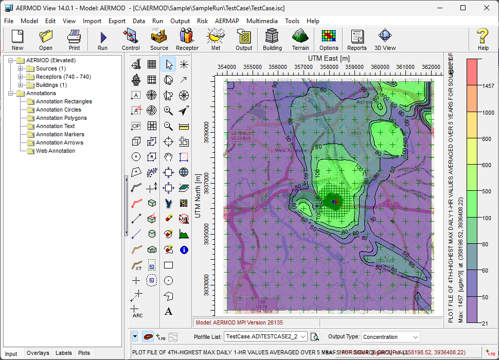
You’ll now see the imported project data immediately in AERMOD View’s display.
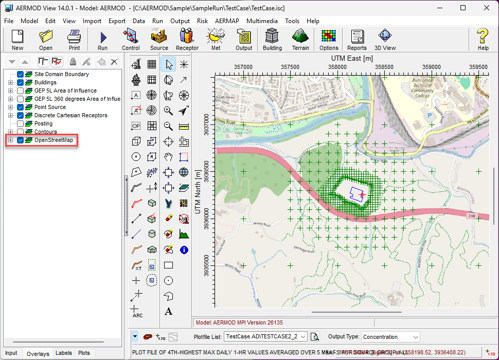
In addition to all project information, AERMOD View will also automatically import the OpenStreetMaps Tile Maps data for your project providing additional graphical context to the model data.
If you have more questions about transitioning projects to AERMOD View, please contact our Technical Support team and they’ll be happy to assist!