445 Wes Graham Way, Unit 203

Air Dispersion Modeling

  • August 26, 2026

AERMOD View: Working with the Plots Tab

In a previous modeling tip, we provided an overview of working with layers within Lakes Environmental Software products. In the popular AERMOD View application, the Plots tab lists all available contour plot output files for display and analysis.
Modeling Tip picture
Plots Tree View

The Plots tab contains several functions to assist users in visualizing and analyzing data.

View as Text Modeling Tip picture opens the selected Plot file in the system’s default text editor. Note that you can change the default editor via the Preferences menu.
Zoom to Plot File Modeling Tip picture quickly zooms to the full extents of the selected Plot file. This allows the user to easily zoom in or out to the plot’s extents without having to switch to the Overlays tab.
View as Grid Modeling Tip picture opens the selected Plot file in the Plot File Grid View dialog. As discussed in a previous modeling tip, this feature creates a full tabular view of the Plot file data and allows for exporting to Excel.
Import Plot File / Export to CSV Modeling Tip picture provides modelers with the means to quickly import existing Plot files or export selected Plot files to CSV format for further analysis.
Delete Selected Modeling Tip picture removes the selected Plot file or files from the drawing area. The Plot file is deleted from the project entirely. To delete multiple files, hold the Ctrl key while selecting the plots to be removed.
You can also right-click with the mouse on any of the Plot files in the tab to display a context menu with the following options:

Delete Results – Deletes the selected file from the project
View Results – Opens the Plot File Grid View
Save As – Saves the selected Plot file under a different name and/or location
Select All in Group – Selects multiple Plot files within a single folder
Select All – Selects all Plot files in a project
Unselect All – Unselects any selected Plot files
Selecting multiple Plot files in the tab via the Ctrl key also allows users to apply one set of Graphical Options to multiple files at once. This can save valuable time when making edits to a project.

  • July 23, 2026

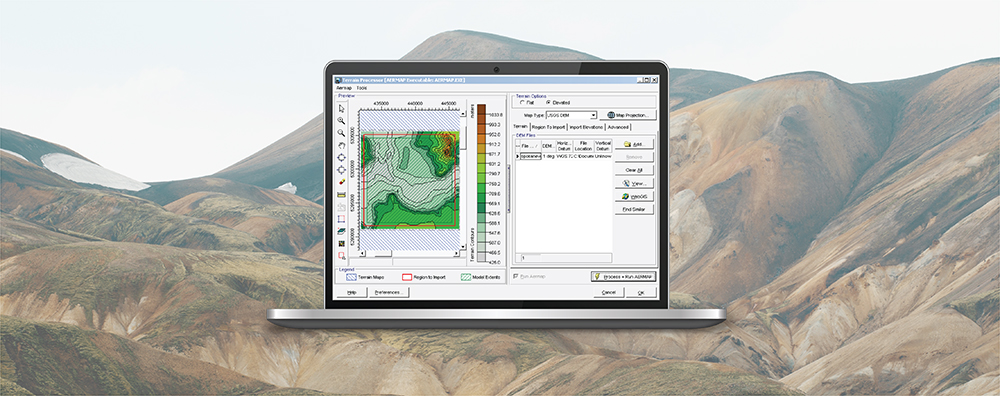
New WebGIS Data: NASADEM

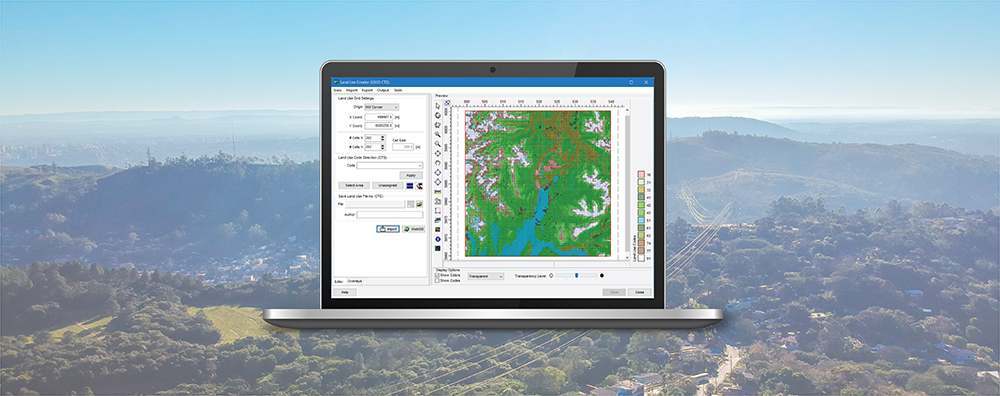
WebGIS provides access to global geophysical data for air dispersion modeling, risk assessment, and other technical applications. Lakes Software’s commercial products – such as AERMOD View, CALPUFF View, and more – integrate WebGIS to automatically download terrain and land use data directly into projects.
  • June 22, 2026

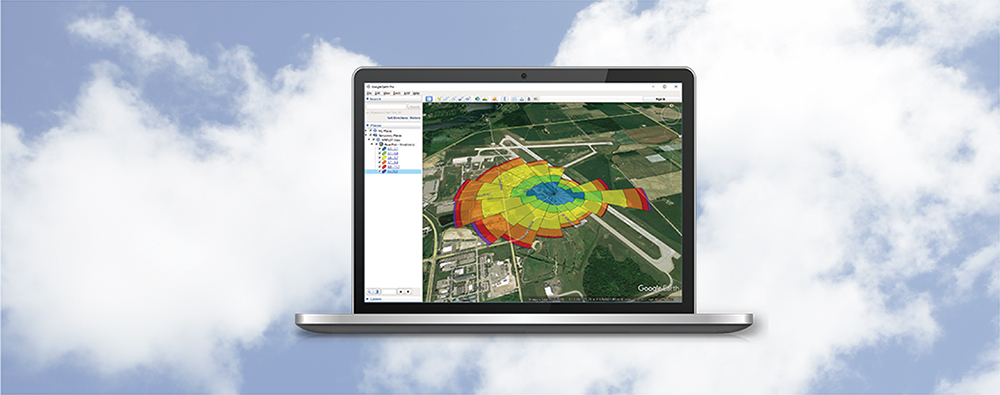
CALPUFF View: Wind Rose Tool

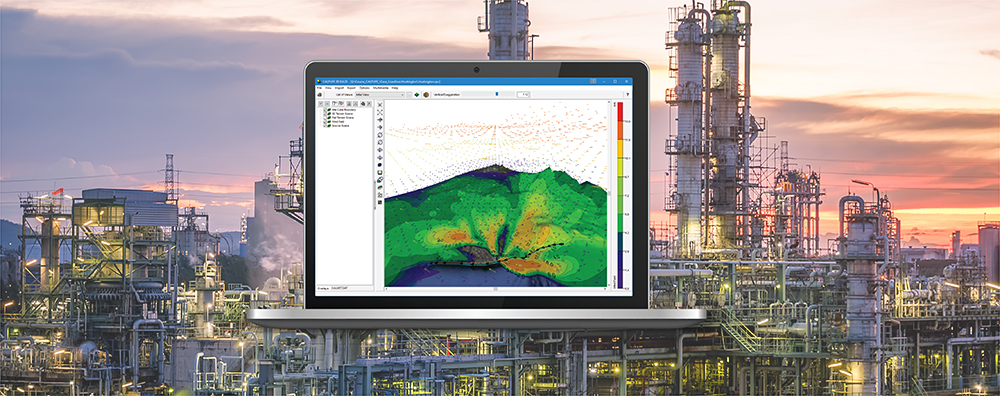
The CALPUFF air dispersion model relies on three-dimensional gridded meteorological fields to simulate the transport, dispersion, and deposition of pollutants.
  • May 27, 2026

Lakes Software Products: Working with Overlays

One of the cornerstones to working with Lakes Environmental Software products is the drawing area. This is where all objects and layers are displayed for viewing and editing. One tool users have to properly control what is displayed in the drawing area is the Overlays tab on the Tree View.
  • April 23, 2026

AERMOD View: Choosing Pollutants

AERMOD, one of the most widely-used air dispersion models in the world for analyzing ambient air pollutant concentrations, is typically applied for a wide variety of buoyant and neutrally-buoyant releases. One recurring question about the model is what pollutants it can (or cannot) model. Coded into the model is a list of pollutant types used to identify the pollutant being modeled for a particular run.

  • March 30, 2026

CALRoads View: Modeling Inert Gases

CALRoads View is an air dispersion modeling package used to predict air quality impacts near roadways from both moving and idling vehicles. Three dispersion models are integrated into the application: CALINE4, CAL3QHC, & CAL3QHCR. The original design of these models accounted only for releases of particulate matter (PM), carbon monoxide (CO), or nitrogen dioxide (NO2) with no further support for other inert gases.