
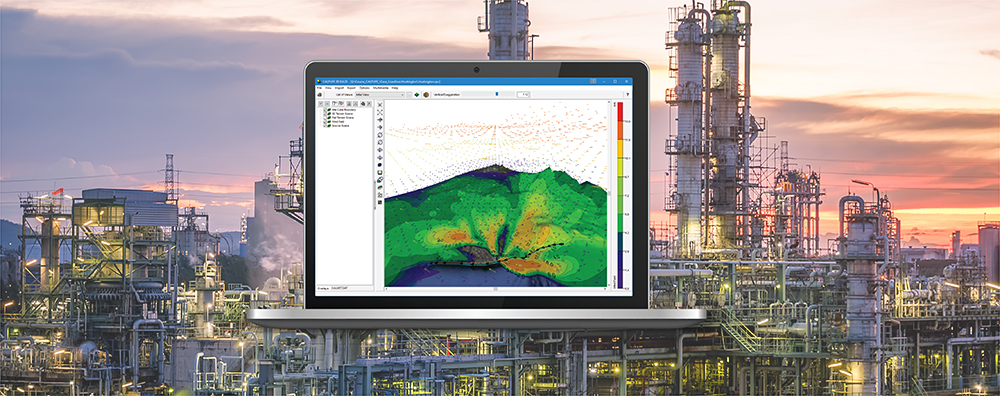
The CALPUFF air dispersion model relies on three-dimensional gridded meteorological fields to simulate the transport, dispersion, and deposition of pollutants. These meteorological fields may be generated by the CALMET meteorological preprocessor or derived directly from prognostic meteorological models.
Understanding these meteorological inputs is often just as important as interpreting the resulting concentration predictions. CALPUFF View includes a tool that allows users to generate wind roses providing a simple way to examine wind patterns anywhere within the modeling domain. The tool can also extract other meteorological variables such as temperature and mixing height for further analysis.
Follow these steps to create a custom wind rose with CALPUFF View:
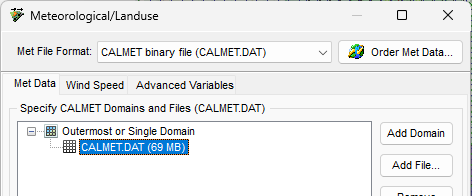
Step 1: Insert a CALMET.DAT file to your CALPUFF View project. If you run CALMET in the application, the file will automatically load into your CALPUFF setup. For CALMET.DAT files generated outside CALPUFF View, go to the Meteorological/Landuse settings of the CALPUFF Wizard and click the Add File button.
Step 2: Select the Wind Rose Tool on the Annotation Toolbar.
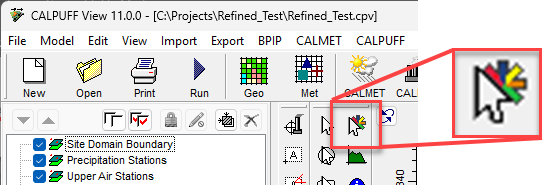
Step 3: Click the left mouse button on the drawing area, at the location where you want to generate a wind rose. The Wind Rose Tool dialog is displayed.
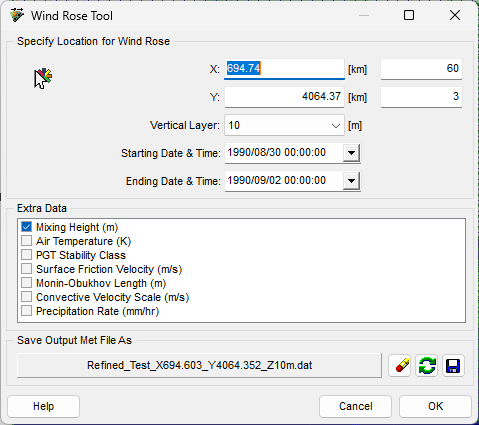
The X and Y coordinates and grid cell numbers of the selected location are displayed in the Specify Location for Wind Rose panel. You can change these values at any time if you desire. You can also modify the vertical layer, start time, and end time to be extracted.
Step 4: Under Extra Data, select any additional meteorological parameters you would like to extract from the CALMET.DAT file. Although these parameters are not displayed on the wind rose, they are written to the output time-series file (*.dat) in ASCII text format from which they can be read and analyzed.
Step 5: The Save Output Met File As panel displays a default file name and location for the generated data file. You can modify the default file or save location as desired. The output file contains time-series data extracted from the selected grid cell and vertical layer within the CALMET.DAT file.
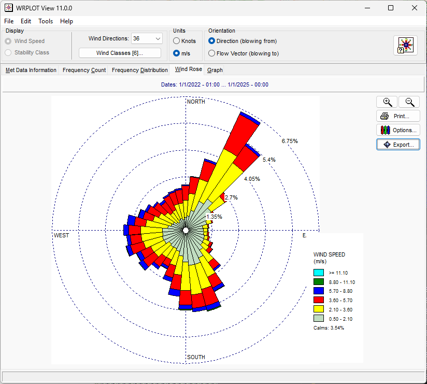
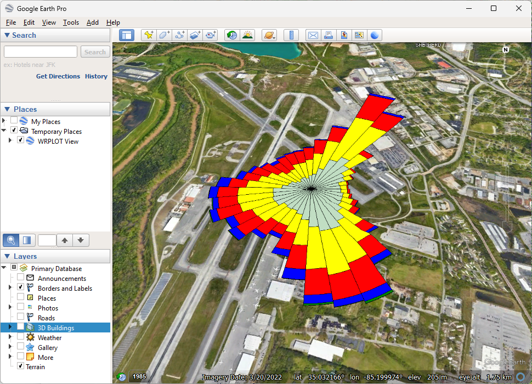
Step 6: Once generated, the output data file is automatically displayed as a wind rose in WRPLOT View. In addition to the graphical wind rose, WRPLOT View provides tabular frequency distributions, wind distribution charts, and the ability to export the wind rose to Google Earth.