

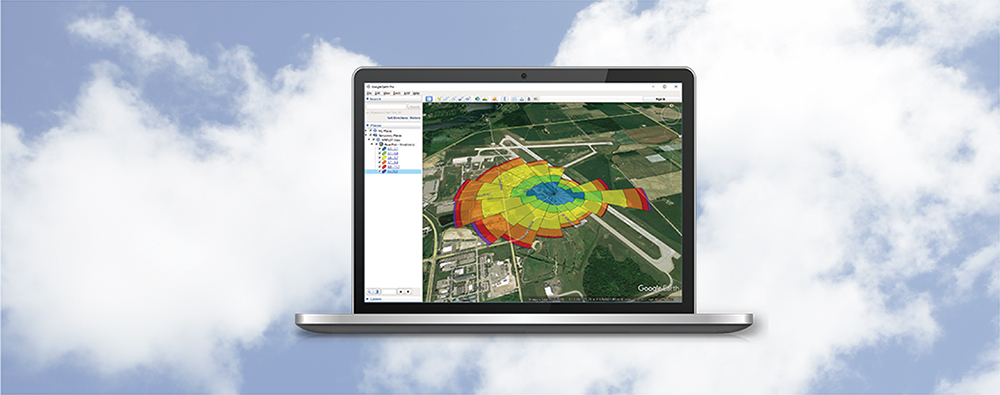
One of the cornerstones to working with Lakes Environmental Software products is the drawing area. This is where all objects and layers are displayed for viewing and editing. One tool users have to properly control what is displayed in the drawing area is the Overlays tab on the Tree View.
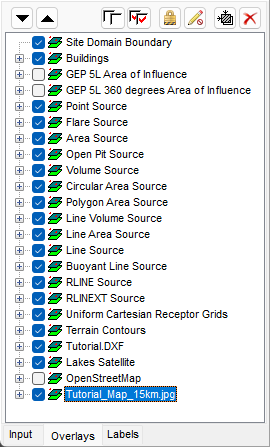
This tab allows users to specify which objects should be displayed, order layers to present the best possible display, or graphically edit specific layers or objects.
Checked layers are shown in the drawing area, and they are displayed in the order they are listed in the Overlays tab. In the example image above, Site Domain Boundary will be on top of all other layers in the drawing area while Tutorial_Map_15km.jpg is the bottom layer.
The following options can be employed to give users better control of their drawing area.
Delete Selected  to quickly remove the selected layer.
The Move Down / Move Up arrows  allow users to quickly shift layers up or down for better visibility in the main display. Layers can also be reordered by selecting the layer name and dragging it up or down as desired.
The Uncheck All  and Check All
  options give users the ability to quickly manage all listed layers for hiding or viewing.
Disable Selection  gives the user the ability to prevent the selected layer from being selected in the drawing area. This is especially useful for large base maps which the user may never want to edit or otherwise select while working with model objects. A layer that has been disabled from selection will have a lock icon displayed
Disable Graphical Editing  prevents the selected layer from being moved, resized, or deleted. The layer or object can still be selected in the drawing area so that it can be edited but it is locked to the drawing area graphically.
Zoom to Overlay  allows you to quickly zoom in on the selected layer. This can be helpful in locating specific model objects or map layers.