

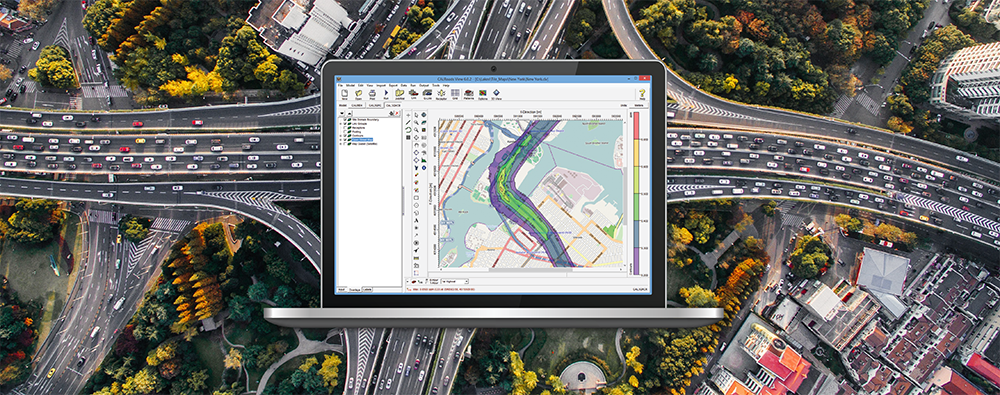
CALRoads View is an air dispersion modeling package used to predict air quality impacts near roadways from both moving and idling vehicles. Three dispersion models are integrated into the application: CALINE4, CAL3QHC, & CAL3QHCR. The original design of these models accounted only for releases of particulate matter (PM), carbon monoxide (CO), or nitrogen dioxide (NO2) with no further support for other inert gases.
This restriction is a by-product of the model code which uses hard-coded values of molecular weight for CO & NO2 to print output concentrations in parts per million (PPM) instead of the more common micrograms per cubic meter (µg/m3). In order to calculate the correct volume, the model uses the hard-coded molecular weight to convert the calculated amounts with the below equation:
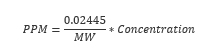
Where: MW = molecular weight [g/mol] and Concentration is given in µg/m3
To expand the models’ capabilities beyond these original pollutants, CALRoads View includes a custom Inert Gases pollutant type with a user-specified Molecular Weight definition. To utilize this feature, follow the steps below.
- Open the Job Options window.

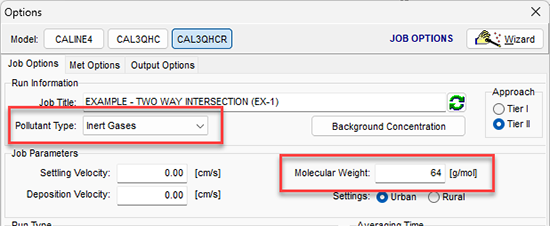
- The options to change are all located on the Job Options tab of the Options window. First, change the Pollutant Type to Inert Gases.
- The Molecular Weight input in the Job Parameters group will switch from a hard coded value to a user input text field. The example below uses a value of 64 representing SO2 as the pollutant type.
- Run the model.
The model output will now print values in PPM that reflect the correct molecular weight of alternate pollutants.
The same option can also be used to report inert gas concentrations in micrograms per cubic meter instead of parts per million. By setting the Molecular Weight to 0.02445, the modeled concentrations remain as their original values. CALRoads View users can then edit the labeling of their contour plots to display the new µg/m3 units.
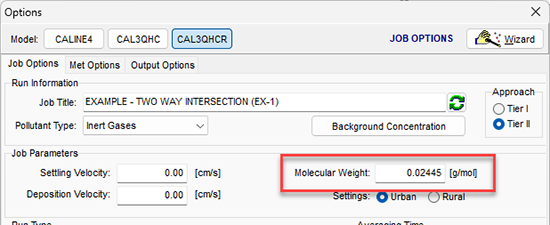
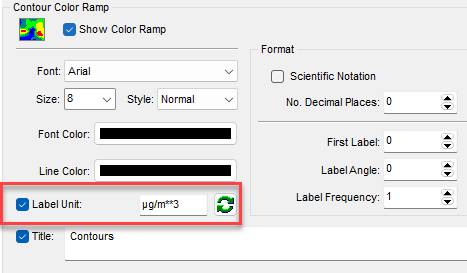
After running the model with that selection, go to the Graphical Options and select the Contours | Color Ramp settings. Change the Label Unit to µg/m3 to reflect the new data units.
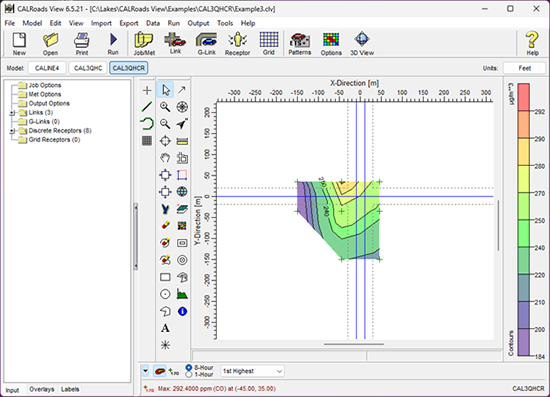
Note that the model output file will still indicate that the results are in ppm, so take care when reviewing the text output.